![Wecan_logo.png]](https://support.wecangroup.ch/hs-fs/hubfs/Wecan_logo.png?height=40&name=Wecan_logo.png)
SUMMARY
Creating and editing Workflows
Using Workflows in Wecan Comply
Creating and editing Workflows
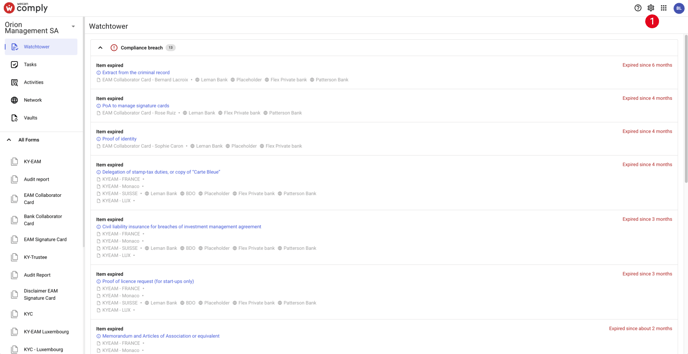
1. Click on Settings, in the top menu.
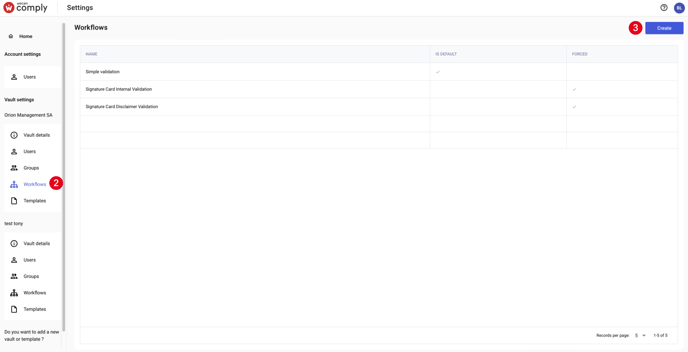
2. In the Vault Settings section, select a Vault then click on the Workflows menu.
3. Click on Create button.
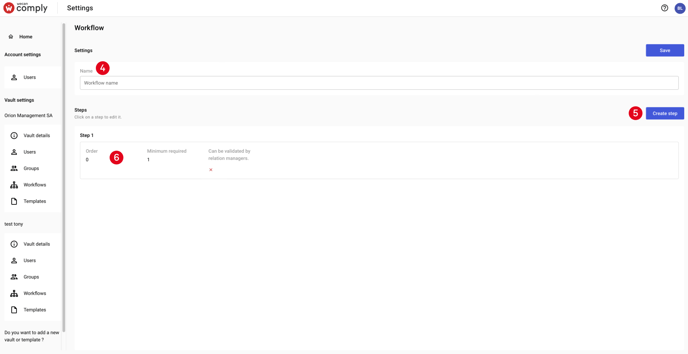
4. Choose a Workflow name.
5. Click on Create step.
6. Click on a step to edit it.
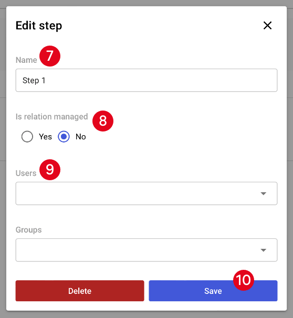
7. Choose a step name.
8. Choose the type of validation:
- By a Relation Manager. Learn how to add a Relation Manager to a relation
- By step members (Users or Groups).
9. Select users and groups by clicking on the drop-down menus.
10. Click on Save.
Tips: Click on Delete button to remove a step.
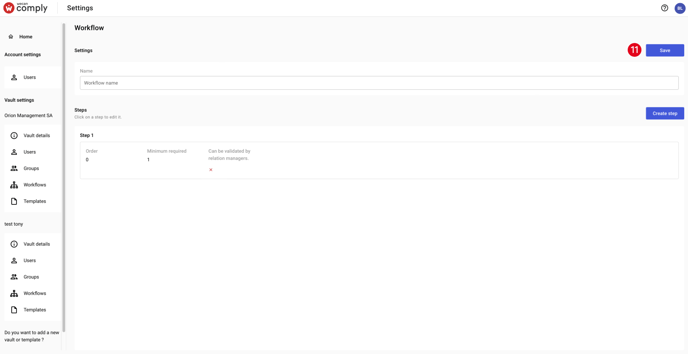
11. Click on Save.
Caution: you cannot delete a Workflows.
Using Workflows in Wecan Comply
Workflows allow you to set up validation systems. Today you can only create and edit sequential workflows.
Available Workflows:
- Sequential: a series of steps to be respected, validation of one step triggers the request for validation of the next group. Ex: Finance Team THEN Legal Team
- Conditional: a series of steps that can be carried out in parallel. Certain conditions can be applied. Ex: Finance Team OR Legal Team
- Forced: certain workflows cannot be modified to reflect legal and standardisation issues.
Explanation of permissions by users according to their roles:
| Create | Add to Template of Form | Edit | Deactivate | |
| Wecan Admin | Yes | Yes (for Template) | Yes | Yes |
| Super Admin | No | Yes | Yes | Yes |
| Admin | No | Yes | Yes | Yes |
| Full-Control | No | No | No | No |
| Read-Only | No | No | No | No |